OpenAI
OpenAI는 Sam Altman과 Eltion Musk가 2015년에 설립한 인공지능 연구 기업입니다. OpenAI는 텍스트를 이해하고 생성할 수 있는 고능력의 언어 모델을 제공합니다. 이를 통해 콘텐츠 생성부터 검색, 분류까지 모두 가능합니다. 이는 OpenAI API를 사용하면 자연어, 코드, 그래픽을 읽거나 생성하는 작업 모두 수행할 수 있습니다. Moderation API를 사용하기 때문에 불법 사용을 방지합니다.
Dalle-3이란?
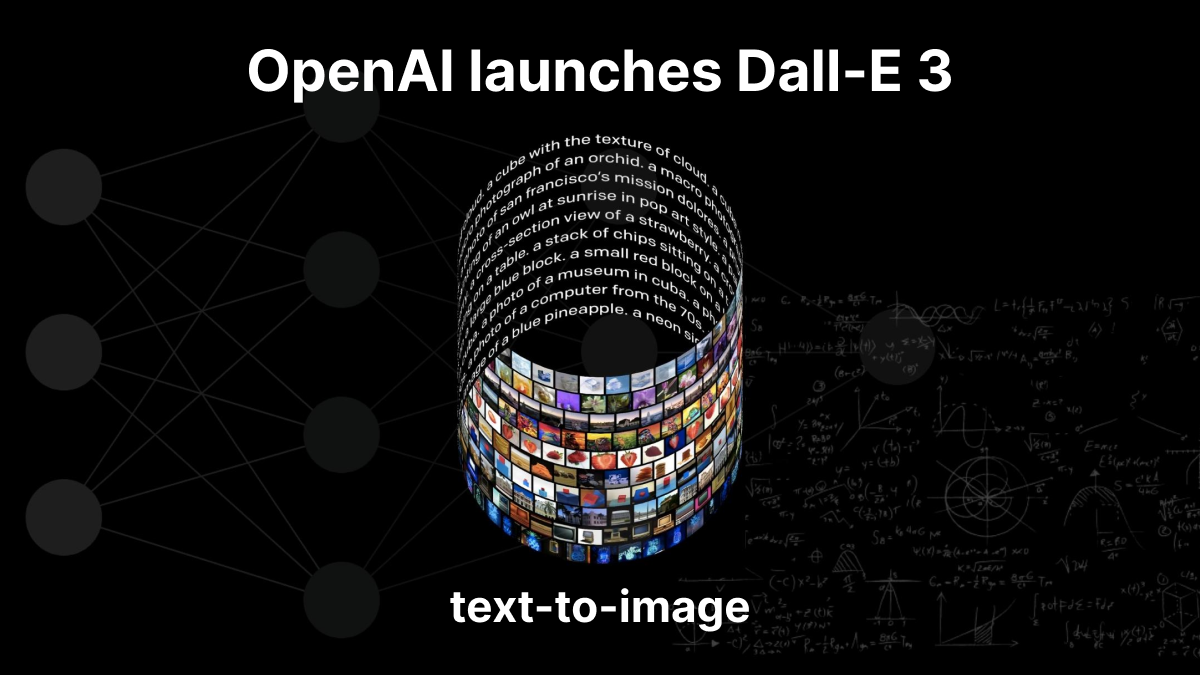
Dalle-3이란 OpenAI에서 만든 이미지 생성엔진입니다. 이미지를 설명하는 Text를 입력하면 여러가지 이미지를 생성합니다. DALLE 3의 주요 특징 중 하나는 ChatGPT와의 기본 통합입니다. 이 통합으로 사용자들이 ChatGPT와 함께 프롬프트로 사용할 수 있습니다. 사용자가 간단한 문장이나 상세한 단락으로 ChatGPT에 원하는 대상에 대한 설명을 입력하면, ChatGPT는 DALLE 3를 위한 맞춤형, 상세한 프롬프트를 생성합니다. 사용자가 생성된 이미지가 마음에 들지 않는다면, 몇 마디만으로 ChatGPT에게 수정을 요청할 수 있습니다.
OpenAI API 활용해 이미지 생성 사이트 만들기
이제부터 Dalle 3 API를 사용하여 사용자가 입력한 설명에 따라 이미지를 생성하는
간단한 웹사이트를 만들어보겠습니다.
이 웹사이트는 Node.js와 Express.js를 백엔드로 사용하고,
프론트엔드는 HTML과 JavaScript로 구성됩니다.
1. 프로젝트 설정
먼저, Node.js 프로젝트를 설정하고 필요한 패키지를 설치합니다.
mkdir dalle3
cd dalle3
npm init -y
npm install express axios dotenv
2. 디렉토리 구조
다음과 같은 디렉토리 구조를 만듭니다:
dali3-image-generator/
├── .env
├── index.js
├── public/
│   ├── index.html
│   └── script.js
└── views/
    └── style.css
3. .env 파일
.env 파일에 OpenAI API 키를 저장합니다.
OPENAI_API_KEY=your_openai_api_key
OpenAI API 키는 https://openai.com/index/openai-api/ 에 접속해 로그인 한 후,
DashBoard > API keys에서 "+ Create new secret keys" 버튼을 누르면 새로 생성할 수 있습니다.

4. 백엔드 코드 (index.js)
Express 서버를 설정하고 Dalí 3 API와 통신하는 엔드포인트를 만듭니다.
const express = require('express');
const axios = require('axios');
const dotenv = require('dotenv');

dotenv.config();

const app = express();
const port = process.env.PORT || 3001;

app.use(express.json());
app.use(express.static('public'));

app.post('/generate-image', async (req, res) => {
  const { prompt } = req.body;

  try {
    const response = await axios.post(
      'https://api.openai.com/v1/images/generations',
      {
        prompt,
        n: 1,
        size: '1024x1024',
      },
      {
        headers: {
          Authorization: `Bearer ${process.env.OPENAI_API_KEY}`,
          'Content-Type': 'application/json',
        },
      }
    );

    if (response.data && response.data.data && response.data.data.length > 0) {
      const imageUrl = response.data.data[0].url;
      res.json({ imageUrl });
    } else {
      res.status(500).send('No image URL found in the response.');
    }
  } catch (error) {
    console.error('Error:', error.response ? error.response.data : error.message);
    res.status(500).send('Image generation failed.');
  }
});

app.listen(port, () => {
  console.log(`Server is running on http://localhost:${port}`);
});
5. 프론트엔드 코드 (public/index.html)
사용자 입력을 받는 간단한 HTML 페이지를 작성합니다.
<!DOCTYPE html>
<html lang="en">
<head>
  <meta charset="UTF-8">
  <meta name="viewport" content="width=device-width, initial-scale=1.0">
  <title>Dalle 3 Image Generator</title>
  <link rel="stylesheet" href="style.css">
</head>
<body>
  <div class="container">
    <h1>Dalle 3 Image Generator</h1>
    <form id="image-form">
      <input type="text" id="prompt" placeholder="Enter image description" required>
      <button type="submit">Generate Image</button>
    </form>
    <div id="result">
      <img id="generated-image" src="" alt="Generated Image" style="display:none;">
    </div>
  </div>
  <script src="script.js"></script>
</body>
</html>
6. 프론트엔드 스크립트 (public/script.js)
폼 제출 시 서버에 요청을 보내고, 생성된 이미지를 표시하는 스크립트를 작성합니다.
document.getElementById('image-form').addEventListener('submit', async (event) => {
    event.preventDefault();

    const prompt = document.getElementById('prompt').value;
    const response = await fetch('/generate-image', {
      method: 'POST',
      headers: {
        'Content-Type': 'application/json',
      },
      body: JSON.stringify({ prompt }),
    });

    if (response.ok) {
      const data = await response.json();
      const imageUrl = data.imageUrl;
      const imageElement = document.getElementById('generated-image');
      imageElement.src = imageUrl;
      imageElement.style.display = 'block';
    } else {
      alert('Image generation failed.');
    }
  });
7. 스타일 (public/style.css)
간단한 스타일을 추가합니다.
body {
    font-family: Arial, sans-serif;
    display: flex;
    justify-content: center;
    align-items: center;
    height: 100vh;
    margin: 0;
    background-color: #f0f0f0;
  }

  .container {
    text-align: center;
    background: white;
    padding: 20px;
    border-radius: 8px;
    box-shadow: 0 0 10px rgba(0, 0, 0, 0.1);
    max-width: 400px;
    width: 100%;
  }

  h1 {
    margin-bottom: 20px;
  }

  #prompt {
    width: calc(100% - 24px);
    padding: 10px;
    margin-bottom: 10px;
    box-sizing: border-box;
  }

  button {
    padding: 10px 20px;
    background-color: #007bff;
    color: white;
    border: none;
    border-radius: 4px;
    cursor: pointer;
    width: 100%;
  }

  button:hover {
    background-color: #0056b3;
  }

  #result {
    margin-top: 20px;
  }

  #generated-image {
    max-width: 100%;
    border-radius: 8px;
  }
실행 방법
1. 프로젝트 디렉토리로 이동하여 서버를 시작합니다.
node index.js
2. 웹 브라우저에서 http://localhost:3000을 열고, 설명을 입력한 후 이미지를 생성합니다.
"An Asian woman and a Western man are having a wedding outside on May afternoon"를 입력했을 때 오류 없이 다음과 같은 사진이 출력되었습니다.

마치며 ..
openAI API를 활용해 웹 사이트를 구현하면서 API를 사용하는데 python, json 등 많은 방법이 있다는 것을 알게 됐습니다. 게다가 웹사이트 생성에 대해 배울 수 있는 유의미한 시간이었습니다.
이번에 배운 지식을 활용해 캡스톤 디자인 프로젝트 최종 결과물을 만들때까지 단계를 밟아 차차 배워나갈 것이고, 특히 python을 백엔드로 어떻게 쓸지 그리고 사용자 친화적인 디자인을 가지는 프론트엔드를 어떻게 만들지 더 공부할 것입니다!
읽어주신 모든 분들께 감사하고 많은 도움 얻으셨길 바랍니다 !